How to Remove Paragraph Symbols in Outlook (2026): Step-by-Step Guide for Every Version
Seeing strange backward P marks scattered across your Outlook emails can be confusing the first time it happens. These are called paragraph symbols, and they show up when formatting marks get turned on inside your message window.
The good news is that you can remove paragraph symbols in Outlook in just a few clicks, no matter which version you use. This guide walks through every method, from the classic desktop app to Outlook on the web and Mac, so you can get back to a clean, distraction free inbox.
What Are Paragraph Symbols In Outlook?
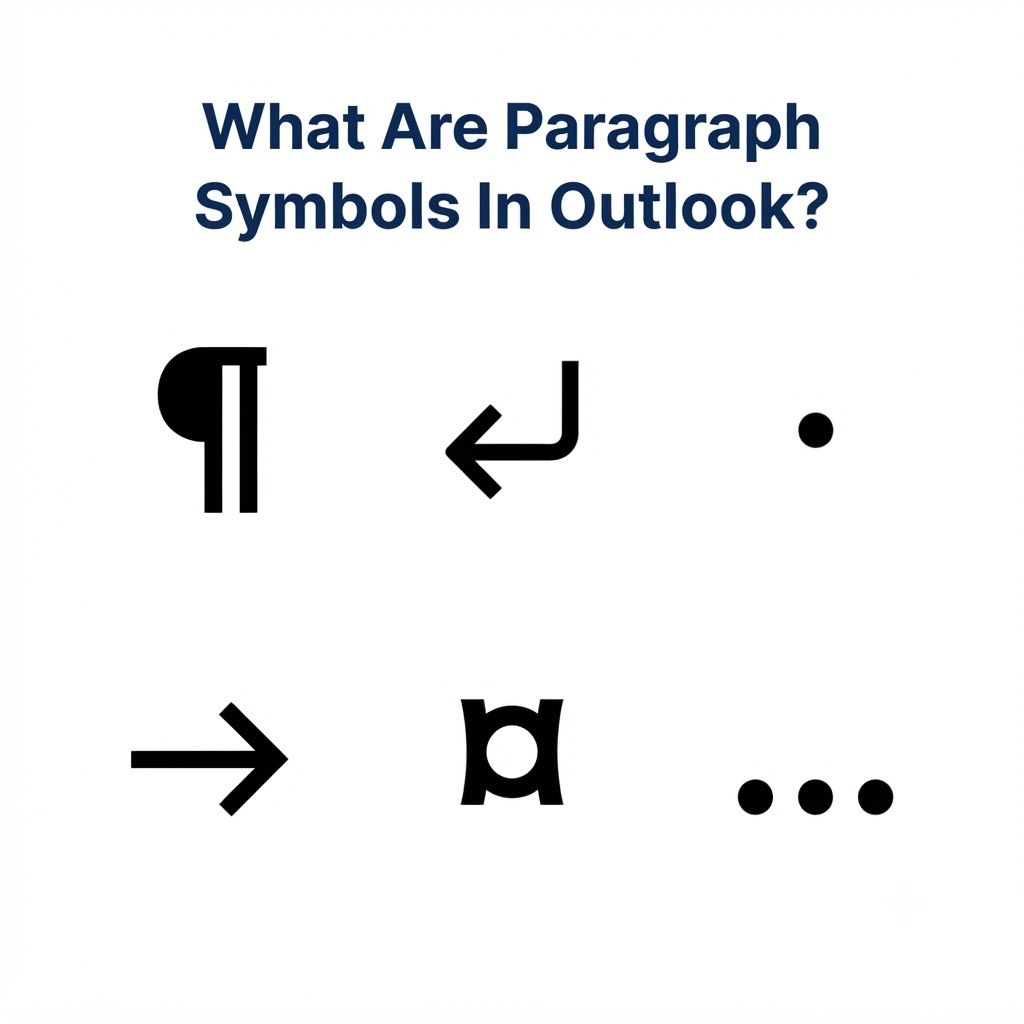
Paragraph symbols, also called pilcrows, are small formatting marks that Outlook displays while you are typing an email. They show where a paragraph ends, where a line break happens, or where a space sits between words.
These marks exist purely as editing guides and never appear in the message your recipient actually opens.
Why Paragraph Symbols Appear In Outlook & How To Turn Them Off
Paragraph symbols usually appear because formatting marks got switched on, either by accident or through a setting that carried over from a previous email. Once you understand why they show up, turning them off becomes a quick, repeatable fix.
Why Do Paragraph Symbols Appear In Outlook
Most of the time, these marks appear because someone clicked the Show or Hide button in the ribbon without meaning to. Outlook sometimes also remembers your last formatting choice, so if you had marks turned on in a previous draft, a new email may open the same way.
Turn Off Formatting Marks Outlook
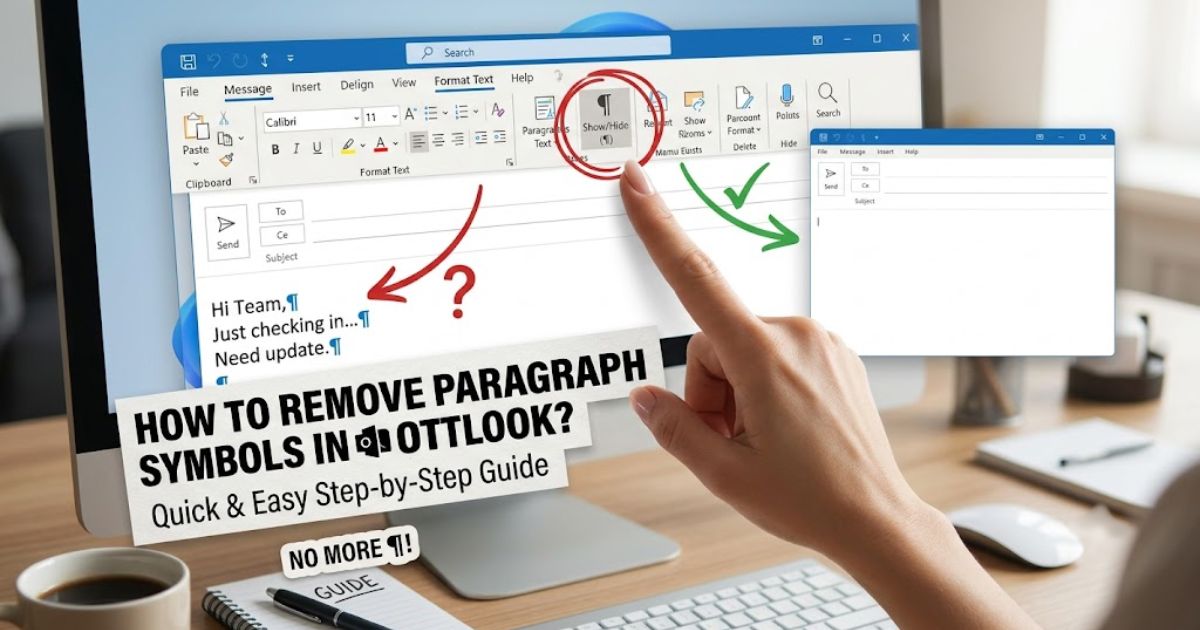
To turn off formatting marks, open the Format Text tab while composing a message and look for the pilcrow icon in the Paragraph section. Clicking it once switches the marks off instantly, and the same button switches them back on if you ever need them again.
How To Turn Off The Paragraph Symbol In Outlook
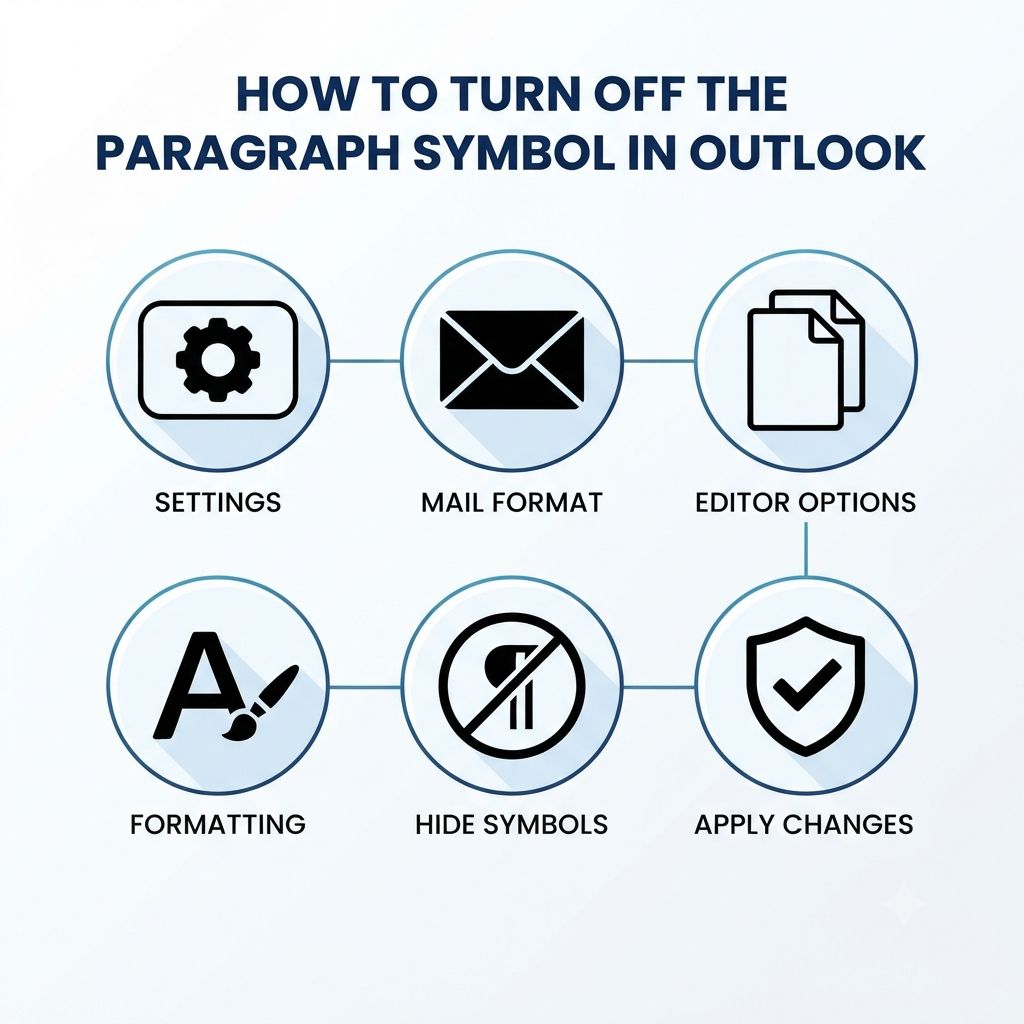
Place your cursor inside the email body, then head to the ribbon and select Format Text. From there, click the paragraph icon to remove paragraph symbols from view. This works the same way across most desktop versions of Outlook.
How To Turn Off Paragraph Marks In Outlook
If the ribbon button does not respond right away, try clicking directly inside the message text first. Outlook sometimes needs the cursor active in the body before the formatting toggle will register your click.
Turn Off Paragraph Marks In Outlook
For a faster route, use the keyboard shortcut instead of hunting for the ribbon icon. Pressing Ctrl and Shift together with the asterisk key on Windows toggles the marks off in a single move.
How To Remove Paragraph Symbols In Outlook (All Versions & Devices)
Whether you are on Windows, Mac, or the browser version, the core idea stays the same. You are simply switching off a display setting, not deleting anything from your actual email content.
How To Remove Paragraph Symbols In Outlook

Open a new message, go to Format Text, and click the pilcrow button in the Paragraph group. The symbols disappear right away and your email looks clean and ready to send.
Remove Paragraph Marks In Outlook
You can also remove paragraph marks by adjusting Editor Options under File, then Options, then Mail. This gives you control over every formatting mark, not just paragraph symbols alone.
How To Remove Paragraph Marks In Outlook
Inside Editor Options, select Display, then look under the formatting marks section. Uncheck Paragraph marks specifically if you want that setting to stick across future emails.
How To Get Rid Of Paragraph Symbol In Outlook
A single click on the Show or Hide icon is usually enough to get rid of the paragraph symbol for good in that session. If it reappears later, repeat the same click or shortcut.
How To Remove The Paragraph Symbol In Outlook
Some users find it easier to memorize the keyboard shortcut rather than searching the ribbon each time. Once you use Ctrl Shift 8 a few times, it becomes second nature.
Outlook Remove Line Break Symbol
Line break symbols fall under the same formatting marks group as paragraph symbols. Turning off the pilcrow button removes both at once, so you do not need a separate step.
How To Remove In Outlook Email
Within any individual email draft, the fix stays local to that message unless you change the setting through Editor Options. This means you can toggle marks on for one email and off for the next without conflict.
How To Remove Paragraph Symbols In Outlook Email
Click into the body of the specific email you are editing, then use the Format Text tab to switch the marks off. This targets that message directly without touching your global settings.
How To Remove Paragraph Symbols In Outlook Emails
If the marks show up across multiple emails in a row, it usually points to a setting that saved from your last session. Adjusting Editor Options once will stop the pattern from repeating.
Outlook On The Web Clear Formatting Eraser Icon
On Outlook on the web, look for the eraser style icon in the formatting toolbar while composing a new message. This clears extra formatting, including any visible marks, in one click.
Version-Specific Solutions (365, Mac, 2010–2021 & More)
Different Outlook versions place the formatting toggle in slightly different spots, but the underlying method to remove paragraph symbols barely changes across releases.
| Outlook Version | Where To Find The Toggle |
| Outlook 365 | Format Text tab, Paragraph group |
| Outlook 2021 | Format Text tab, Paragraph group |
| Outlook 2016 | Format Text tab, Paragraph group |
| Outlook 2010 | Format Text tab, Paragraph group |
| Outlook for Mac | Three dot menu, Turn Off Formatting Marks |
| Outlook on the web | Formatting toolbar, eraser icon |
How To Remove Paragraph Symbols In Outlook App
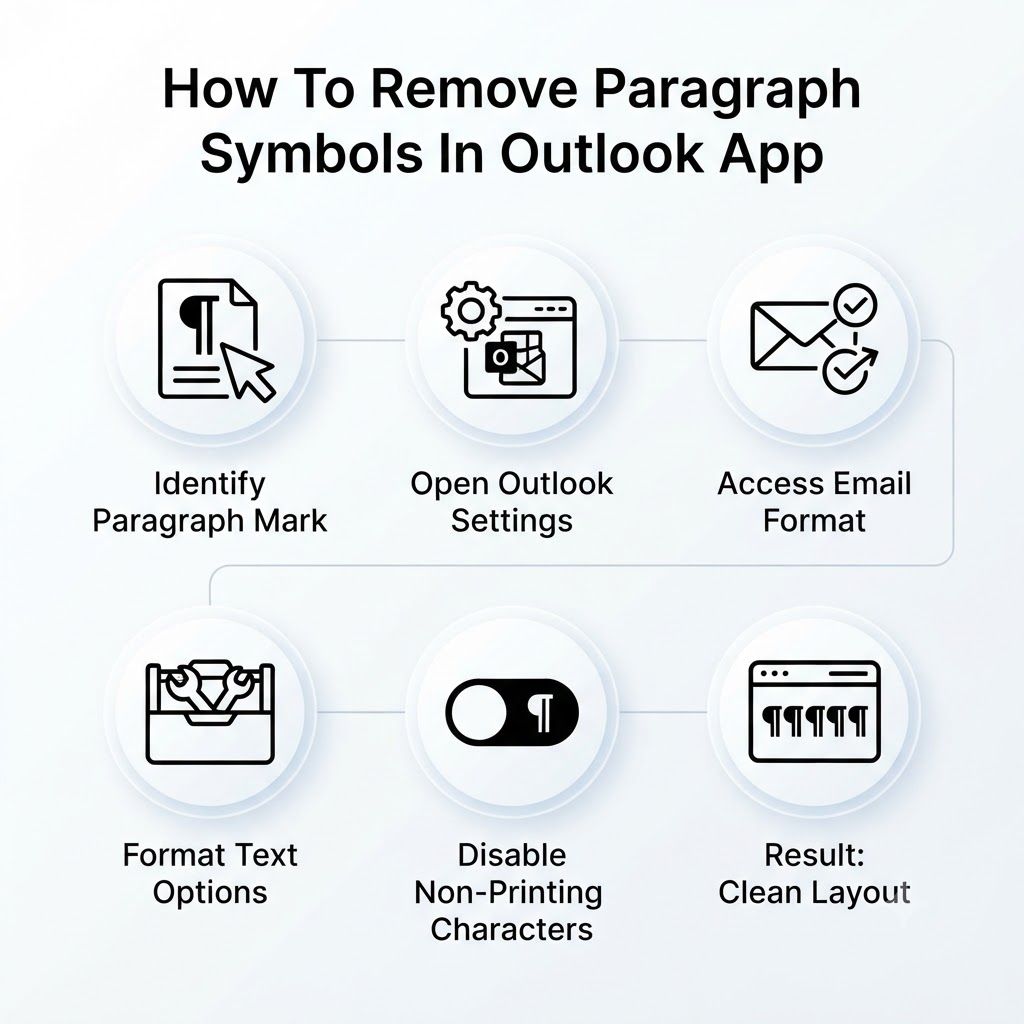
On the mobile app, formatting marks rarely appear since the app uses a simplified editor. If you do spot them, check your message format setting and switch it to a simpler text option.
How To Remove In Outlook 365
Outlook 365 follows the same ribbon layout as older desktop versions. Open Format Text and click the pilcrow icon to remove paragraph symbols right from your current draft.
Turn Off Paragraph Marks In Outlook 365
You can also disable marks permanently through File, Options, Mail, and then Editor Options, which applies the change to every new email you write going forward.
How To Remove Paragraph Symbols In Outlook 365
If the icon looks highlighted or shaded, that means the marks are currently active. One click removes the highlight and hides the symbols at the same time.
How To Remove Paragraph Symbols In Outlook Permanently
For a lasting fix, uncheck every formatting mark option inside Editor Options under Display settings. This stops paragraph symbols from appearing again unless you manually turn them back on.
How To Remove Paragraph Symbols In Outlook Calendar
Calendar invites use the same text editor as regular emails, so the identical Format Text toggle applies there too. Open the invite body and click the pilcrow icon to clear the marks.
How To Remove Paragraph Symbols In Outlook 2021
In Outlook 2021, head to the ribbon while composing, select Format Text, and click the Show or Hide button. The process matches newer 365 versions almost exactly.
How To Remove Paragraph Symbols In Outlook 2016
Outlook 2016 keeps the same ribbon structure as later releases, so the Format Text tab remains your go to spot for switching formatting marks off.
How To Remove Paragraph Symbols In Outlook 2020
There is no official Outlook 2020 release, so most users searching this term are actually on Outlook 2019 or early 365 builds, both of which use the standard ribbon toggle.
READ MORE: 75+ Nature Symbols and Their Meanings
How To Remove Paragraph Symbols In Outlook 2010
Even in the older 2010 version, the Format Text tab still holds the paragraph toggle button in the same Paragraph section, making the fix consistent across a decade of releases.
How To Remove Paragraph Symbols In Outlook Mac
On Mac, open a new message and click the three dot icon labeled See More Options near the top of the compose window, then choose Turn Off Formatting Marks from the list.
Why Do Paragraph Symbols Suddenly Appear?
Paragraph symbols often show up out of nowhere because of an accidental keyboard shortcut, a setting carried over from Word, or pasted content that brought hidden formatting along with it. Since Outlook and Word share editing tools, a change made in one can quietly affect the other.
How To Remove Paragraph Symbols In Outlook Desktop App
The desktop app gives you two dependable ways to remove paragraph symbols, and both take only a few seconds once you know where to look.
Method 1: Use The Toolbar Button
Open your message, click Format Text, and select the pilcrow icon inside the Paragraph group. This instantly hides every formatting mark in that email.
Method 2: Use Keyboard Shortcut
Press Ctrl, Shift, and the asterisk key together on Windows, or Command and 8 on a Mac keyboard. This shortcut toggles the marks off without needing to touch the ribbon at all.
How To Remove Paragraph Symbols In Outlook 365
Outlook 365 mirrors the desktop app closely, so the same Format Text tab and pilcrow button apply here as well. Click the icon once while your cursor sits inside the message body, and the symbols vanish immediately, leaving a clean draft ready for review.
How To Remove Paragraph Symbols In Outlook Web Version
The web version hides formatting marks by default, so most users rarely encounter them unless special formatting gets applied through pasted content. If marks do appear, click the three dot menu in the toolbar and look for any formatting option that mentions marks or symbols, then switch it off.
How To Remove Paragraph Symbols In Outlook Mac
Mac users can remove paragraph symbols by opening the three dot ellipsis menu near the top right of the compose window and selecting Turn Off Formatting Marks. This option sits in a slightly different spot than Windows, but it achieves the exact same result.
If Paragraph Symbols Won’t Disappear
Sometimes the usual toggle does not fully clear things up, especially when pasted text carries hidden formatting from another program. These three fixes handle almost every stubborn case.
Change Email Format
Switch your message format from Rich Text to HTML through the Format Text tab. Plain formatting often prevents extra marks from appearing in the first place.
Clear Formatting
Highlight the affected text and use the Clear Formatting button, usually shown as an eraser icon, to strip out any leftover styling that might be triggering the marks.
Paste Without Formatting
When copying text from Word or a website, use Paste Special or Ctrl Shift V to paste as plain text. This prevents hidden formatting marks from ever entering your email.
Do Paragraph Symbols Show To Email Recipients?
No, paragraph symbols never appear in the message your recipient receives. They exist only inside your own compose window as an editing aid, so you can leave them visible while drafting without worrying about how the final email looks on the other end.
Why Outlook Uses Paragraph Symbols
Outlook uses paragraph symbols to help you spot line breaks, extra spaces, and paragraph boundaries that are otherwise invisible. These marks become especially useful when cleaning up text pasted from another source, since they reveal exactly where formatting problems are hiding.
Common Formatting Issues Caused By Paragraph Marks
Paragraph marks themselves rarely cause real problems, but the formatting they reveal often points to bigger issues, such as:
- Extra blank lines between paragraphs
- Inconsistent spacing after pasted content
- Unexpected line breaks in the middle of sentences
- Leftover styling from Word documents
Best Practices To Avoid Formatting Problems In Outlook
A few small habits go a long way toward keeping your emails clean and professional looking:
- Always paste text using the plain text option when copying from Word or a webpage
- Keep formatting marks visible while editing complex emails, then turn them off before sending
- Stick to HTML format instead of Rich Text for smoother compatibility
- Review Editor Options once and set your preferred default so you rarely need to adjust it again
Conclusion
Learning how to remove paragraph symbols in Outlook takes only a minute once you know where the toggle lives. Whether you use the ribbon button, a keyboard shortcut, or the Editor Options menu, the outcome is the same: a clean, professional looking email with no stray marks in sight. Keep this guide handy, and you will never have to wonder about those backward P symbols again.
Now you know why paragraph symbols show up in Outlook. You also know how to remove them fast. Whether you use the ribbon, a shortcut, or a settings change, the result is the same. Your email looks neat and ready to send. No more guessing about those strange marks. Just a few clicks, and they are gone for good.